Designer ribbon
Recent version of Excel have a top ribbon/menu that displays most buttons and functionalities in several tabs. Outbreaktools files (setup, designer and linelists) each have an extra tab in this menu containing OutbreakTools functionalities.

Manage the designer
Clear entries
Clear all fields from user-entered data.
Language of the designer
Use the dropdown menu to change the language of the designer interface. Available languages: English, French, Arabic, Spanish and Portuguese.
Imports
Import translations
If the user wishes to modify the linelist interface translations, it is possible to ask for the config file to EpiDS/Yves Amevoin, tweak it and import it with this button.
Import passwords
The designer is loaded with a password table, with private and public keys to protect exports (when some exports are configured to be password protected). However, the designer is on Github, in a public repo, so if you compile a linelist that needs a password protection, it is best to ask for the config file to EpiDS/Yves Amevoin and import it using the “Import password” button.
Import styles
The designer comes with two default styles for linelist themes. It is possible to personalise it. To do that, ask for the config file to EpiDS/Yves Amevoin, tweak it and import it with this button.
Open a linelist
This button is used as a shortcut to opening a linelist.
Open the generation report
Click on this button to access the generation report once linelist generation is complete.
Generate Multiple
The worksheet “Generate Multiple” provides an interface for generating multiple linelists in one go, from different setups and different geobases.
The buttons within the “Multiple Linelist” section of the ribbon are visible across the Designer, but they are only functional when the user is on the “Generate Multiple” sheet.
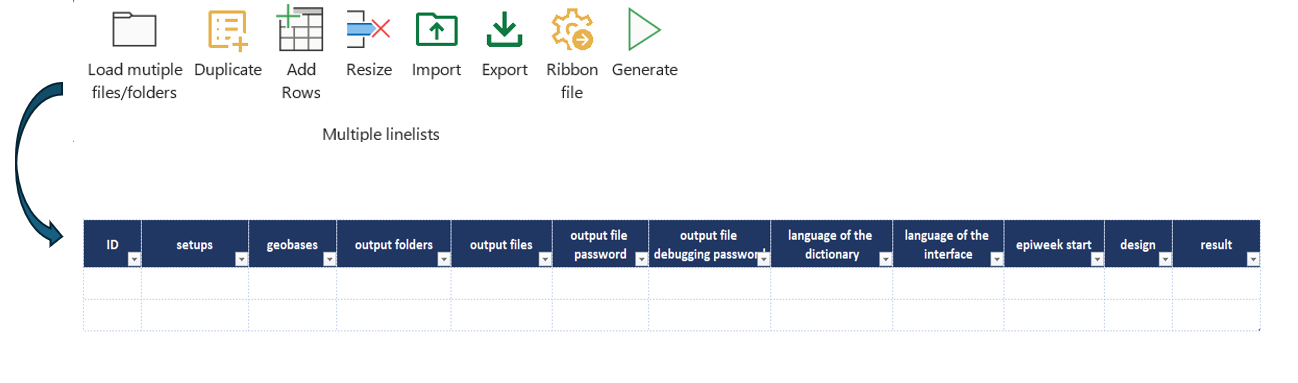
Load multiple file/folders
This is used to load files into the setups, geobases and output columns. Before clicking the button, ensure the cursor is inside the data table area or else you will get an error message.
Duplicate
You can duplicate a filled row and modify it according to what your interests are.
Add Rows
Clicking this button will add more rows.
Resize
Click on the “Resize” button to remove any empty rows at the end or in the middle of the worksheet.
Import
You can also import the exported multi generated linelists back into the designer
Export
Use this button to export all the files in the multi generation sheet.
Ribbon
This is used to load a ribbon template file in the designer. That file is necessary to generate a linelist with its own OBT menu, and is part of the .zip archive that you can dowload from Github if you want to build an OBT linelist.
Generate
Once you have populated the sheet with all the required information, click the “Generate” button to start the generation process.